Manage people and role-based access — global roles, teams, per-workspace roles and custom permission sets — from Settings → Users & teams.
What it is
Talon's access model is built on permissions of the form module:action. A role is a named set of those permissions, assigned globally to a user or scoped to a single workspace. Settings → Users & teams (/settings/users, admin only) has three tabs: Users, Teams & access and Roles.
There are six actions:
view
Read detections, coverage and evidence.
operate
Run validation and replay, triage, comment — anything that acts without changing releasable content.
edit
Author drafts and raise change requests. Never a direct write to main.
approve
Approve and merge change requests into main.
deploy
Push or export a release to a SIEM.
admin
Manage configuration and governance.
Thirteen modules each offer only the actions that make sense for them — 31 permissions in all. The custom-role builder shows exactly these:
detections
Detections (Forge) — view · edit · approve
connect
Connect: SIEM and integrations — view · edit · admin
coverage
Coverage (Atlas) — view
validate
Validation (Monitor) — view · operate
replay
Replay — view · operate
soc
SOC — view · operate · admin
claw
Talon Claw (AI) — view · operate · admin
threat
Threat intel — view · edit
release
Releases and deploys — view · approve · deploy
board
Workboard — view · edit
org
Organisation and settings — view · admin
automations
Automations (Flow) — view · edit · operate
search
Search: data lakes — view · operate
Roles and permissions
Four built-in global roles grant an action in every module that offers it:
Action
admin
engineer
analyst
readonly
view
Yes
Yes
Yes
Yes
operate
Yes
Yes
Yes
—
edit
Yes
Yes
Yes
—
approve
Yes
Yes
—
—
deploy
Yes
Yes
—
—
admin
Yes
—
—
—
Three built-in workspace roles grant the same way inside one workspace:
owner
All six actions.
engineer
view · operate · edit · approve · deploy.
viewer
view only.
Custom roles are built on the Roles tab: a Name, a Description, the Permissions it grants and Assignable as — org, workspace or both (the default) — which decides whether it can be a user's global role, a workspace grant, or either. The built-in roles can't be edited or deleted.
A custom global role replaces the user's built-in role's permission set. It can never confer the admin account privileges themselves — managing users, roles and the organisation stays with the built-in admin role.
Users, custom roles and teams are also written to the org config repo as Org/identity/users.yaml, roles.yaml and teams.yaml — with no password hashes — so access changes have a commit history. See Organisation.
How access is resolved
The global role is the ceiling. Inside a workspace, what you can do is the intersection of your global permissions and your workspace grant. A workspace role can narrow what your global role allows, never widen it.
Where the workspace grant comes from. Org admins are owner of every workspace. Otherwise a direct grant to you wins; failing that, the highest grant among your teams applies (with that grant's custom role, if it has one); failing that, the organisation's owner account is owner. With none of these you have no access to the workspace.
Teams. On Teams & access, create a team (name and description), add users as member or manager, and grant the team workspaces with a base role and an optional custom role. Direct user access on the same tab grants one user one workspace.
Changes apply on the next request. Every page and API call re-reads your current role from the database rather than trusting the role recorded in your session, so a demotion or a disable takes effect at once. The same goes for a user's API tokens: their scopes are re-intersected with the owner's current role on every request.
Open a user from the table to see their teams, the effective permissions they hold in each workspace, and their recent activity.
The first admin
The first admin is created at boot, only when the database has no users; it never changes an existing user. The username and email come from the environment (defaults shown); leave the password unset:
.env
TALON_ADMIN_USERNAME=talon
TALON_ADMIN_EMAIL=admin@talon.local
# TALON_ADMIN_PASSWORD unset: a random one is generated
A generated password is printed once in the container log and saved to /data/secrets/initial-admin.txt (mode 0600). It must be changed at first sign-in; delete the file afterwards. If you set TALON_ADMIN_PASSWORD yourself, TALON_ADMIN_FORCE_PASSWORD_CHANGE=true forces the same change. That suits hosted provisioning, where the operator hands over a unique initial password.
No default credentials
There is no talon / talon login any more. A well-known admin password (talon, admin, changeme, password, replace-with-a-strong-password) refuses startup, and TALON_ALLOW_INSECURE_DEFAULTS does not waive it.
Managing users
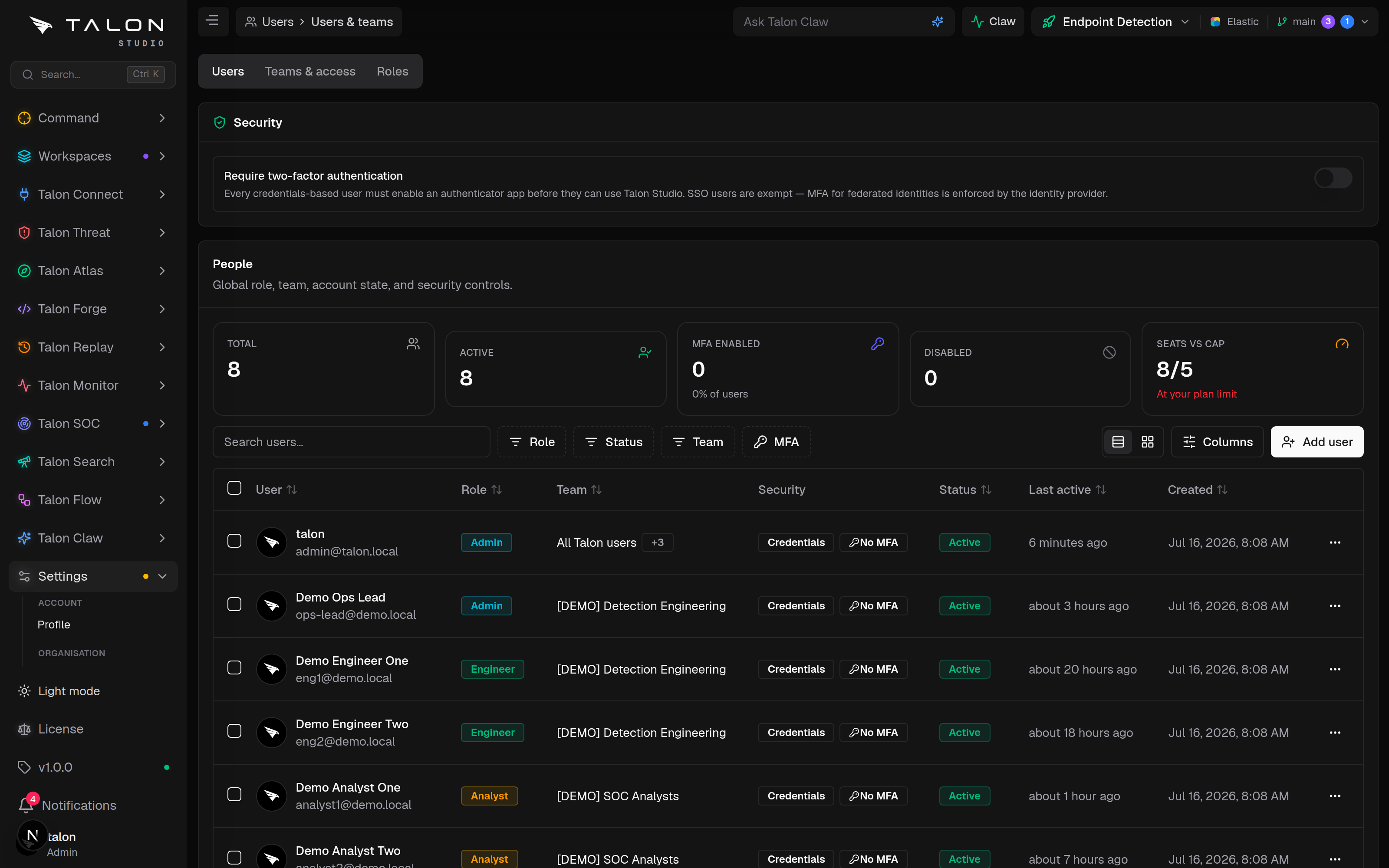
The Users tab lists everyone with their role, team, sign-in method, two-factor status, account status and last activity. Add user opens Create user — Name, Email and Role (a built-in role or an assignable custom role) — which creates a local credentials account with a 20-character temporary password. Copy it from the dialog: it is shown once, and the user must replace it at first sign-in. Each row's … menu offers:
Role — pick a built-in or custom role. A custom role that can only be assigned per workspace is listed but greyed out.
Reset password — credentials users only. Issues a new temporary password and forces a change at next sign-in.
Reset MFA — shown only when the user has enrolled; clears their authenticator and recovery codes so they can enrol again.
Disable user / Enable user — lock an account without deleting it. A disabled user can't sign in and their personal API tokens stop working.
Some changes are refused so an organisation can't lose its last administrator: you can't disable yourself or remove your own admin role, and nobody can demote or disable the last active admin.
User limit. The Community Edition allows 2 active users. Disabled users don't count, and SSO self-registration counts the same as Add user. At the limit the dialog reads "User limit reached (2/2)" — more users come with Enterprise, which is in development.
Security card.Require two-factor authentication makes every credentials user enrol an authenticator before they can use Talon Studio. SSO users are exempt; their provider enforces MFA.
Forgotten passwords. Talon Studio sends no email. Forgot password on the sign-in page records a request and tells admins — in the in-app notifications and as a system_notice to Slack or Teams — and an admin resets the password and hands the temporary one over directly. The reset clears the request.
Change request review policy. The Teams & access tab also holds the organisation's defaults for change-request review: approvals required to merge (1 by default), block self-approval, require an assigned reviewer, AI review (off, on request, or automatic when a change request opens) and whether AI review blocks a merge. With Enforce for all workspaces on, a workspace can only tighten these.
The Users tab, with the Security card above the people table. Open a row's … menu for Role, Reset password, Reset MFA or Disable user; Add user sits above the table.
You can't reset your own MFA here
Reset MFA refuses to act on your own account — use your profile page instead, where turning two-factor off requires a current code. Keep a second admin enrolled so a lost authenticator never locks out the only account that could fix it.