Talon Studio runs as a published container image on a host you own. Run the installer, or write the same two files by hand — either way you end with an ordinary Compose project you control. Then put your own proxy in front and sign in for the first time.
What you need
Installing Talon Studio means running one image — you do not need the source. The image bundles the Next.js application, embedded Postgres, the embedded pySigma sidecar, the database migrations and the runtime entrypoint.
A Linux host with Docker Engine and Compose v2 — the docker compose plugin; the old docker-compose script cannot read the file — and curl. Your own hardware, a cloud VM, or a managed platform (see Deployment Options). Images are published for linux/amd64: plan on an x86-64 host, because new releases are not built for arm64.
2 vCPU and 4 GB RAM is a comfortable start. 2 GB is the floor, and content sync is what runs short of memory near it.
A persistent volume mounted at /data, about 20 GB to start. It holds the database, the workspace Git repos, the content clones and any secret Studio generates — see What lives on disk.
Outbound HTTPS, to pull the image and to sync the detection content library from its public sources. Both can be arranged without it: see Offline and air-gapped.
A way in that terminates TLS, and a DNS name for it — a reverse proxy on the host (Caddy, nginx), a Cloudflare Tunnel, or your platform's own router.
The image, ghcr.io/talon-labs-detection-platform/talon-studio. It is public: the pull needs no login.
Your Community key, from your Talon Labs account. Studio asks for it as soon as the first admin signs in, and shows only the key screen until it has one — see Your Community key.
Not serverless
Studio keeps a process alive between requests: it syncs detection content and SIEM metadata on timers, pulls threat intelligence, and runs validation in the background. On a platform that freezes the process between requests, none of that runs. Anything that runs a long-lived container is fine; a function runtime is not.
The one-line install
The installer does the next four sections for you, in this order. It checks for curl, Docker and Compose v2, and that Docker runs amd64; asks for the origin your proxy will answer on; fetches the same two published files into ./talon-studio; checks that the registry will hand out the image, before it generates anything; generates five secrets into .env and sets TALON_TRUST_PROXY=true; shows you the encryption key and waits until you type saved; and runs docker compose up -d, which pulls the image and starts it. It ends by printing a Caddyfile for your proxy and the command that reads the first admin's password — see First sign-in.
terminal — read it, then run it
curl -fsSL https://www.talonlabs.dev/studio/install.sh -o install.sh && less install.sh && sh install.sh
terminal — or in one go
curl -fsSL https://www.talonlabs.dev/studio/install.sh | sh
It is a convenience, not a second way to run Studio. What it leaves behind is exactly what the manual route below produces — a docker-compose.yml fetched unmodified from this site and a .env beside it, readable by you alone — so afterwards the directory is an ordinary Compose project you own outright. Edit the .env, docker compose down, bring it back up, commit it to your own repository, drive it from your platform of choice. Nothing is reachable only through the script.
Re-running it is safe: a value already set in .env is kept, never regenerated, and a docker-compose.yml already in the directory is left alone — delete it and re-run to take the current published version. So it is also the way to fill in a .env you started by hand. With a Studio data volume already on the host, it leaves the database password and the encryption key to that volume, and with no .env beside an existing volume it stops rather than write new ones over it.
Options and exit codes
It takes --dir (default ./talon-studio, or TALON_STUDIO_DIR), --url (the origin; a bare hostname gets https://, or TALON_STUDIO_URL), --no-start (write the files, start nothing) and --assume-escrowed (skip the key confirmation, for automation that already captures it). With no terminal attached, --url is required. It exits 1 on a missing prerequisite or a bad option — or a data volume with no .env beside it — 2 when a download fails, 3 when the key is not confirmed, 4 when the registry will not hand out the image — which it finds out before generating anything, so running it again carries on from there — and 5 when docker compose up -d itself fails.
It will show you the encryption key once
TALON_ENCRYPTION_KEY is generated for you, printed, and the installer waits for you to type saved before it starts anything. Any other answer stops it with the files written and nothing running — save the key, then docker compose up -d. (With no terminal to ask on, it warns and carries on.) The key is in .env, not in the data volume, so a backup of the volume does not hold it: keep .env with your backups. That is deliberate: generating it silently would not remove a step, it would hide one, and the bill arrives months later when a restored backup turns out to be ciphertext. We do not keep a copy.
By hand: the files
Everything from here to Bring it up is what the installer automates. Do it yourself when you want to read every value before it lands, when your secrets come from Vault or SOPS rather than from openssl, or when the whole thing has to live in your own repository from the first commit.
The compose file and the environment template are published on this site, copied from the product's own release files. Fetch both into an empty directory rather than writing your own — the compose file carries the pinned image, the loopback bind, the named volume and the health check that the notes below assume.
The compose file's top-level name: talon-studio fixes the Compose project name, so the volume is always talon-studio_talon_data whatever the directory is called — the backup commands rely on that. It also means one Docker host runs one Studio: a second directory would be the same project, on the same volume. TALON_HTTP_PORT in .env changes the host port; the container always listens on 3000.
Running Kubernetes instead? The Helm chart is published as a plain HTTPS chart repository on this site — see Deployment Options.
By hand: the .env
Nothing in it is required: leave out the auth secrets, the encryption key or the database password and Studio generates them into /data/secrets on first boot and reuses them on every restart. The installer writes them into .env instead, so the encryption key is not stored in the volume it protects. To end with the same install by hand, set these — the template carries NEXTAUTH_URL with a localhost placeholder and the rest commented out:
.env
# the public origin YOUR proxy answers on — not ours
NEXTAUTH_URL=https://studio.your-domain.com
TALON_TRUST_PROXY=true
# what the installer writes; leave these out and Studio generates them into /data/secrets.
# Set POSTGRES_PASSWORD and TALON_ENCRYPTION_KEY before the first boot or never: openssl rand -hex 32
AUTH_SECRET=
NEXTAUTH_SECRET=
TALON_ENCRYPTION_KEY=
POSTGRES_PASSWORD=
# not generated: strict security warns at every boot without it
TALON_METRICS_TOKEN=
A value you set always wins over a generated one and is never written to the volume; an empty one counts as unset. POSTGRES_PASSWORD takes effect only when the database is first created, and TALON_ENCRYPTION_KEY is what every stored credential is encrypted under, so set those two before the first boot or leave them to the volume for good. TALON_METRICS_TOKEN is the bearer for /api/metrics; the template turns on TALON_STRICT_SECURITY, which warns at every boot without one.
The template ships with TALON_STUDIO_IMAGE pinned to a release (ghcr.io/talon-labs-detection-platform/talon-studio:v1.0.2-beta in the current file). Leave it pinned: a tag that moves makes "what is actually running" unanswerable and turns rollback into guesswork — see Upgrading. It also names the first admin, admin with admin@example.com; change those before the first boot if you like, as they apply only to an empty database. Environment Variables lists the rest.
Escrow the encryption key before first boot
TALON_ENCRYPTION_KEY encrypts every credential Studio stores — SIEM tokens, AI keys, deployment credentials. Set in .env, it lives only there, so a backup of the volume does not hold it; left out, it is generated into /data/secrets/encryption_key, inside the volume it protects. Either way, put a copy in your password manager now: a restored database without the key is ciphertext.
Pull the image
The image is ghcr.io/talon-labs-detection-platform/talon-studio, and it is public: the pull needs no login. Pull it before composing anything up, so a slow first download is not mistaken for a broken stack.
Which tag to name, if not the one the template pins. Production should name a version:
v<version>
One release: vX.Y.Z-beta for a beta, vX.Y.Z for a stable one. v1.0.2-beta is the current one. Never moves. Pin this in production.
<version>
The same release without the v, e.g. 1.0.2-beta. Never moves.
beta
The newest beta release. It moves.
latest
The newest stable release, or the newest beta until a stable one exists. It moves.
edge
The newest build of the main branch. It moves with every merge, so it is not for a machine you rely on.
sha-<12>
One build of the main branch, named by the first 12 characters of its commit. Never moves.
Check what you pulled, if you want to
Every image the publish workflow pushes — a release, and each build of the main branch — is signed with Sigstore cosign keyless signing, and carries a CycloneDX inventory of everything inside it (an SBOM), attached as a signed attestation. The commands below check both with cosign 3, and accept only our publish workflow, run from the main branch or a version tag. None of it is required to install — it is there so you never have to take our word for it.
The first boot initialises the database, starts pySigma and runs the migrations, which takes a few minutes; docker compose logs -f app follows it, and Ctrl-C stops the following, not the app. If Studio generated any secret, the log says which, and where the encryption key is; with every secret in .env, as the installer leaves it, there is nothing to report. Migrations run on every boot, before the app starts; a failed one stops the container, and restart: unless-stopped retries it, skipping those already applied.
/api/health answers 503 with {"status":"not_ready"} until the database, pySigma and Git storage are all usable. A container that exits straight away and restarts in a loop is most often the startup security check — docker compose logs app begins with Refusing to start: insecure configuration and lists what to fix; see Security Hardening.
What lives on disk
One named volume, talon-studio_talon_data, is mounted at /data and holds everything Studio keeps. The .env beside the compose file is the one thing outside it.
/data/postgres
The embedded database: every record, and every stored credential, encrypted.
/data/secrets
Any secret Studio generated because .env left it out, and initial-admin.txt until you delete it.
/data/repos
The detection-as-code Git repositories, one per workspace.
/data/sigma and the other clones
SigmaHQ, Security Content, Atomic Red Team, Azure Sentinel and Stratus Red Team. They re-sync from their public sources, so they are the part you could afford to lose.
/data/uploads
Profile avatars.
/data/logs
Durable application logs.
/data/claude
The Claude Code engine's own state, so a subscription sign-in survives a recreate.
.env
On the host, beside the compose file: NEXTAUTH_URL and, with the installer, AUTH_SECRET, TALON_ENCRYPTION_KEY, POSTGRES_PASSWORD and TALON_METRICS_TOKEN. Back it up with the volume.
Nothing publishes a port except the app, on 127.0.0.1:${TALON_HTTP_PORT:-3000}; Postgres and pySigma listen inside the container only. docker compose down keeps the volume; docker compose down -v deletes it, database included, so keep -v out of any script. What to copy, and how to prove a restore works, is on Backup & Restore.
Put a proxy in front
The app binds to loopback on purpose. Nothing on the box should be reachable from the internet directly, so a proxy on the host is the only way in — a Cloudflare Tunnel that dials out (no inbound firewall rule at all), Caddy with automatic certificates, or whatever your platform routes with. Studio does not bundle one. With Caddy on the same host:
Caddyfile
studio.example.com {
encode zstd gzip
reverse_proxy 127.0.0.1:3000 {
flush_interval -1
header_up X-Real-IP {remote_host}
}
}
The installer prints this block with your hostname in it. Both inner lines matter: agent runs and the assistant stream their output, and flushing straight through keeps them live instead of arriving in bursts; and Caddy passes a client's own X-Real-IP through untouched unless told otherwise, so the second line overwrites it. Studio itself believes only the last X-Forwarded-For hop, the one your proxy appends, for its rate limits and IP-allowlisted API tokens. With nginx, the same two lines are proxy_set_header X-Real-IP $remote_addr; and proxy_buffering off;.
1
Set NEXTAUTH_URL=https://studio.example.com in .env — the address people type, and the base URL deployed detections post notables back to. The installer writes the origin you gave it.
2
Set TALON_TRUST_PROXY=true, which the installer does too. Rate limits and IP-allowlisted API tokens then see the real client address, and IP-allowlisted tokens fail closed without it. Only behind a proxy that sets X-Real-IP as above: exposed directly, the header is the client's to forge.
3
docker compose up -d again to apply a change.
Open the origin, not 127.0.0.1:3000
With an https:// origin in NEXTAUTH_URL, the browser upgrades every request the page makes to https, so opening http://127.0.0.1:3000 directly comes up blank. Sign in through the proxy. AUTH_TRUST_HOST already defaults to true in the image, so the host headers the proxy sends are trusted; for outbound TLS to a SIEM or AI endpoint behind a corporate CA, see Security Hardening.
First sign-in
When the database has no users, Studio creates the first admin from TALON_ADMIN_USERNAME and TALON_ADMIN_EMAIL — admin and admin@example.com in the published template, talon and admin@talon.local if neither is set. There is no default password. With TALON_ADMIN_PASSWORD unset, it is random, printed once in the container log, and saved on the volume once the first boot is done:
Open your origin — the address in NEXTAUTH_URL, through the proxy — and sign in with the username or the email from the file.
2
Choose a new password: the first sign-in goes straight there, and nothing else opens until you do. It needs at least 12 characters, with an upper-case letter, a lower-case letter, a number and a symbol.
3
Paste your Community key on the key screen that follows — see Your Community key below.
Create your workspace in the Quick Start dialog, which opens because there is none yet. You can connect its SIEM in the same step.
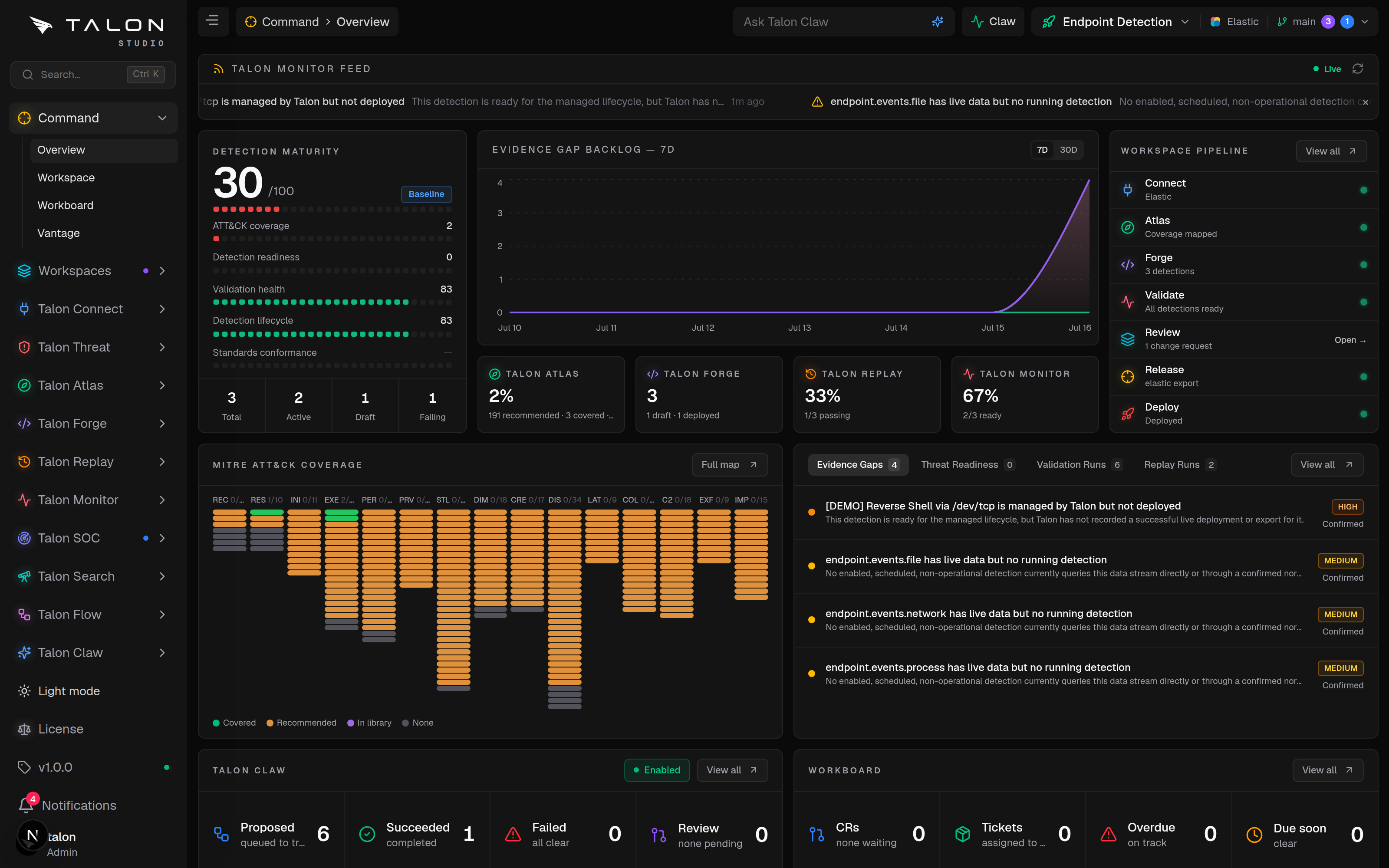
Where you land once the workspace exists: Command → Overview — detection maturity, the evidence-gap backlog, the workspace pipeline and the MITRE ATT&CK coverage map on one screen.
Setting the password yourself
A TALON_ADMIN_PASSWORD you set is used as it is, and is not forced to change unless you also set TALON_ADMIN_FORCE_PASSWORD_CHANGE=true. Well-known values — talon, admin, changeme, password and the like — refuse startup. None of these variables touches an existing user: they apply only to an empty database.
The content library keeps filling
The detection content library — SigmaHQ, Atomic Red Team and the rest — is cloned and indexed in the background, so it keeps filling for several minutes after you first sign in.
Your Community key
The new admin lands on the key screen, and until a key is in, every page opens on it. Paste the Talon Studio key from your Talon Labs account; the welcome mail has it too. To change it later, an admin uses the License button at the foot of the sidebar (/license).
The Community key makes the appliance the Community Edition — every product in these docs, with these limits, fixed in code (no environment variable changes them):
Users
2
Workspaces
1
SIEM connections
1
Deployment targets
1
Deploy branches
main only
API tokens
2, read-only scopes
Detections and branches
Unlimited
It is checked on this server against a public key built into the image, and it never contacts Talon Labs: a Community key is never activated or checked in. At a limit, creating one more is refused with a message that says so — at the SIEM limit, Connect SIEM opens the License dialog instead. Enterprise, which lifts the limits, is in development and not on sale. What happens when a key expires, is revoked or stops verifying is on Licensing.
For provisioning automation, TALON_LICENSE_KEY in .env applies a key at boot, once the first admin exists, instead of the paste. The installer leaves it out: the key goes in on the screen.
Update, roll back, remove
To update, back up /data (see Backup & Restore), move the tag in TALON_STUDIO_IMAGE, then — the full sequence, with the checks, is Upgrading:
terminal
docker compose pull
docker compose up -d
curl -s localhost:3000/api/health # ready again
Migrations from the new version apply on boot against the same volume. Keep TALON_ENCRYPTION_KEY stable across upgrades and restores — it decrypts SIEM tokens, AI keys and the other credentials stored at rest. GET /api/health?detailed=1, signed in or with the TALON_METRICS_TOKEN bearer, reports the running version.
Migrations only run forward, so rolling back is: pin the previous tag, restore the backup you took before the upgrade (if the new version's migrations ran), and docker compose up -d.
To stop the appliance, docker compose down. To remove it entirely, docker compose down -v — this also deletes the talon-studio_talon_data volume, and with it the database, the repos and any generated encryption key, so back it up first if you might need it again.
No hardware? Rent a box
Everything above assumes a Linux host you already have. If you do not have one, rent one — a 2 vCPU / 4 GB VPS costs a few euros a month at the cheaper providers, and it is still your appliance in your account. We operate no shared infrastructure and hold none of your data.
Three routes, and they are alternatives rather than steps. Every file below is served from this site as a plain download, so none of them needs a GitHub account or a registry beyond the image pull above.
1
Point DNS at the machine first. The bootstrap gets a TLS certificate on first boot and cannot do that for a name that does not resolve yet. Create the A record before you create the server — on Hetzner, allocate a Primary IP and attach it.
2
Fetch the bootstrap and fill in its four __PLACEHOLDER__ values — your domain, the first admin's email (Let's Encrypt sends certificate warnings there too), your SSH public key, and a pinned image tag. Leave the domain, email or tag as a placeholder, or name a moving tag like latest, and the install stops with a message naming it rather than coming up half-configured.
3
Paste it into the provider's “user data” box when you create the server. It installs Docker, opens only SSH, HTTP (for the certificate challenge) and HTTPS in the firewall, generates your secrets, starts the appliance, and runs Caddy for TLS. The file estimates about ten minutes after boot; ssh talon@<ip> 'sudo tail -f /var/log/talon-install.log' shows where it is.
4
Take the encryption key off the box.ssh talon@<ip> 'sudo cat /root/talon-credentials.txt' — the same file says how to read the first admin's generated password. The key encrypts every credential Studio stores; a restored volume without it is ciphertext. This is the step people skip and regret.
# already have a cluster? a plain HTTPS chart repo, no registry:
helm repo add talon https://www.talonlabs.dev/charts
helm search repo talon/talon-studio
The bootstrap writes its own compose file and .env into /opt/talon-studio, with the secrets in the .env, so on this route too the encryption key is not in the volume. Cloud Hosting walks through it step by step, with the Terraform stacks and managed platforms.
Check what you downloaded, and pin it
The bootstrap runs as root on first boot, so it is worth thirty seconds. Every published file has a SHA-256 in deploy-manifest.json:
On the Terraform path there is no human in the loop to read the file, so set cloud_init_sha256 to that value: the plan then fails if what comes back is not what you reviewed. Leave it empty and the plan takes whatever the URL serves.
Which provider, what each costs and the catch on each one: Where to host it. Deployment Options covers the Helm chart, and none of this is us running Studio for you: it is the same appliance, on a machine you rent, with the bill in your name.