Talon SOCTalon Studio v1.0.2-beta
Cases
Where alerts get worked: raw fields, the source detection and technique, threat-intel matches, a disposition, an assignee and a full timeline — with AI-assisted investigation and a direct route back to the detection.
Working a case
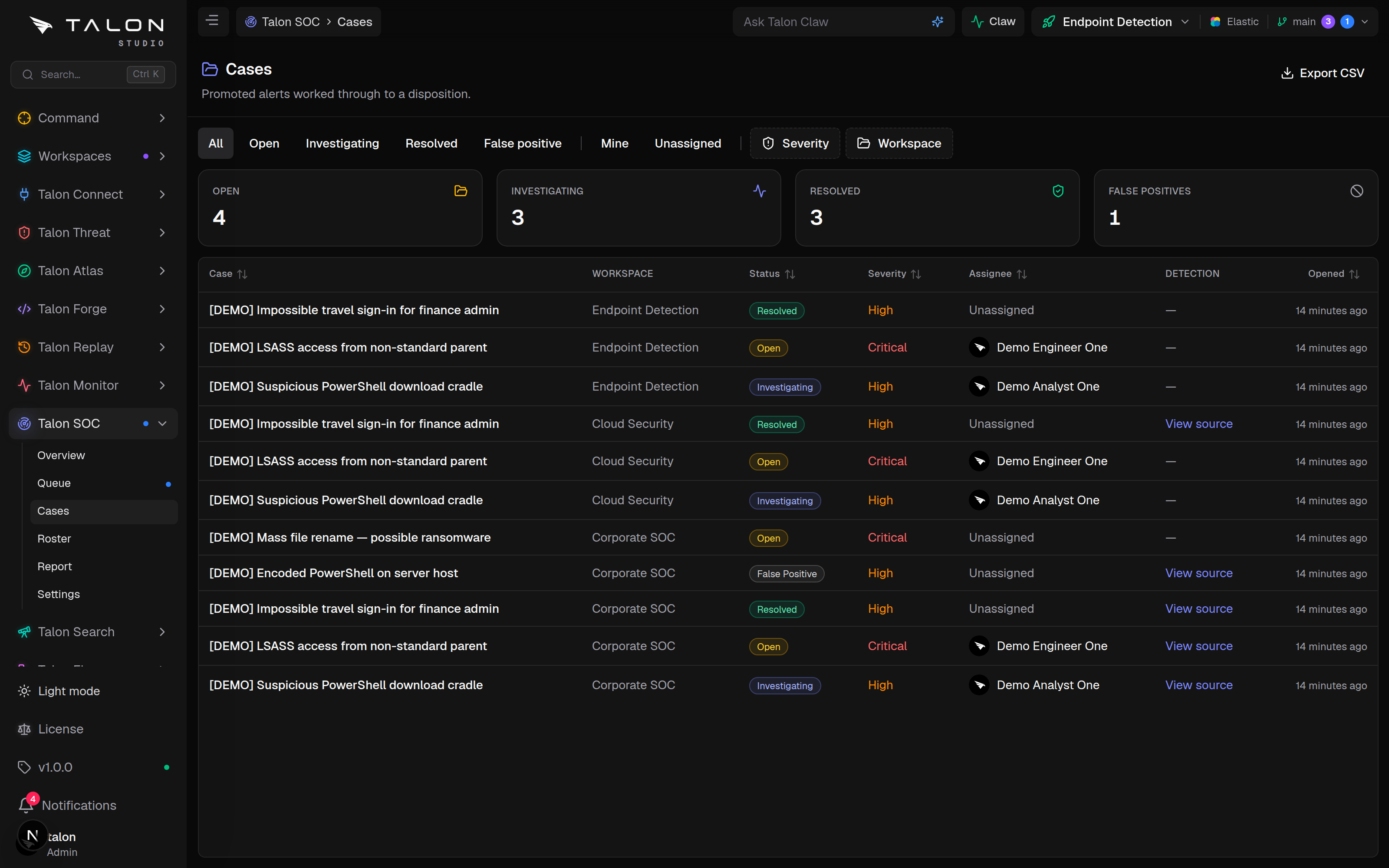
The case list (/soc/cases) has tabs for All, Open, Investigating, Resolved and False positive, and filters for severity and workspace. Opening a case brings the raw alert and its context together so it can be worked end to end without leaving Talon.
1
Open a case to see its key facts (severity, IOC hits, technique, whether a detection is mapped), the raw alert fields, the source detection with its ATT&CK technique, and any linked alerts folded into it.
2
Set Status (open, investigating, resolved, false positive), Priority (critical to low) and Assignee — Assign to me is one click.
3
Click Investigate with AI to dispatch the SOC Analyst agent. It gathers entity context, recommends a disposition and posts its findings to the timeline. It needs an AI provider, and runs once per case.
4
Follow the Activity timeline: every field change, comment (with @mentions) and AI finding in order. Add to Workboard puts the case on the workspace board.
Threat intel briefs the investigation
Talon matches the alert's observables (IPs, domains, URLs, hashes) against the organisation's live indicators from Threat Feeds, each with its decayed score. Matches show under Threat intel matches, each linking to a VirusTotal lookup, and are handed to the agent as a strong true-positive signal. Export sightings downloads matches that came from a STIX/TAXII feed as STIX 2.1 sightings for import into OpenCTI.
Asset context from ServiceNow
When a ServiceNow integration is connected in Connect → Integrations, a new case's host or IP is looked up in the CMDB, and the owner, business service, criticality and location show under Asset context. A crown-jewel asset (criticality 1 or 2) raises the case's priority to high; it never lowers a priority an analyst set.
Disposition & tuning
Closing a case is where the loop pays off: a true positive becomes a ticket, and a false positive becomes a fix.
Set the disposition. true_positive, false_positive, benign or duplicate. Dispositions feed the true-positive rate and the per-detection counts on the SOC report.
True positive → ticket. Marking a case true_positive opens a ticket automatically when a ticketing connection is set up in SOC Settings — a ServiceNow incident if one is enabled, otherwise a Jira issue — and records the ticket key on the case timeline. A failure is written to the timeline too.
False positive → proposed fix. Setting false_positive dispatches the SOC Analyst agent, in the background, to propose the smallest detection edit — an exclusion or filter — that suppresses the pattern without weakening true-positive coverage, as a change request. If it cannot run (no AI provider, or no mapped detection), the timeline says why.
Tune detection. On a false-positive case, Tune detection opens the detection in Forge for a manual fix. Either way the change goes through your normal review.
Everything is logged. Disposition, assignment, tickets and tuning all land on the case timeline for a complete audit trail.
Tip
Prefer the proposed change request or Tune detection to editing the rule elsewhere: the fix goes back through validation and review, and stays tied to the case that prompted it.