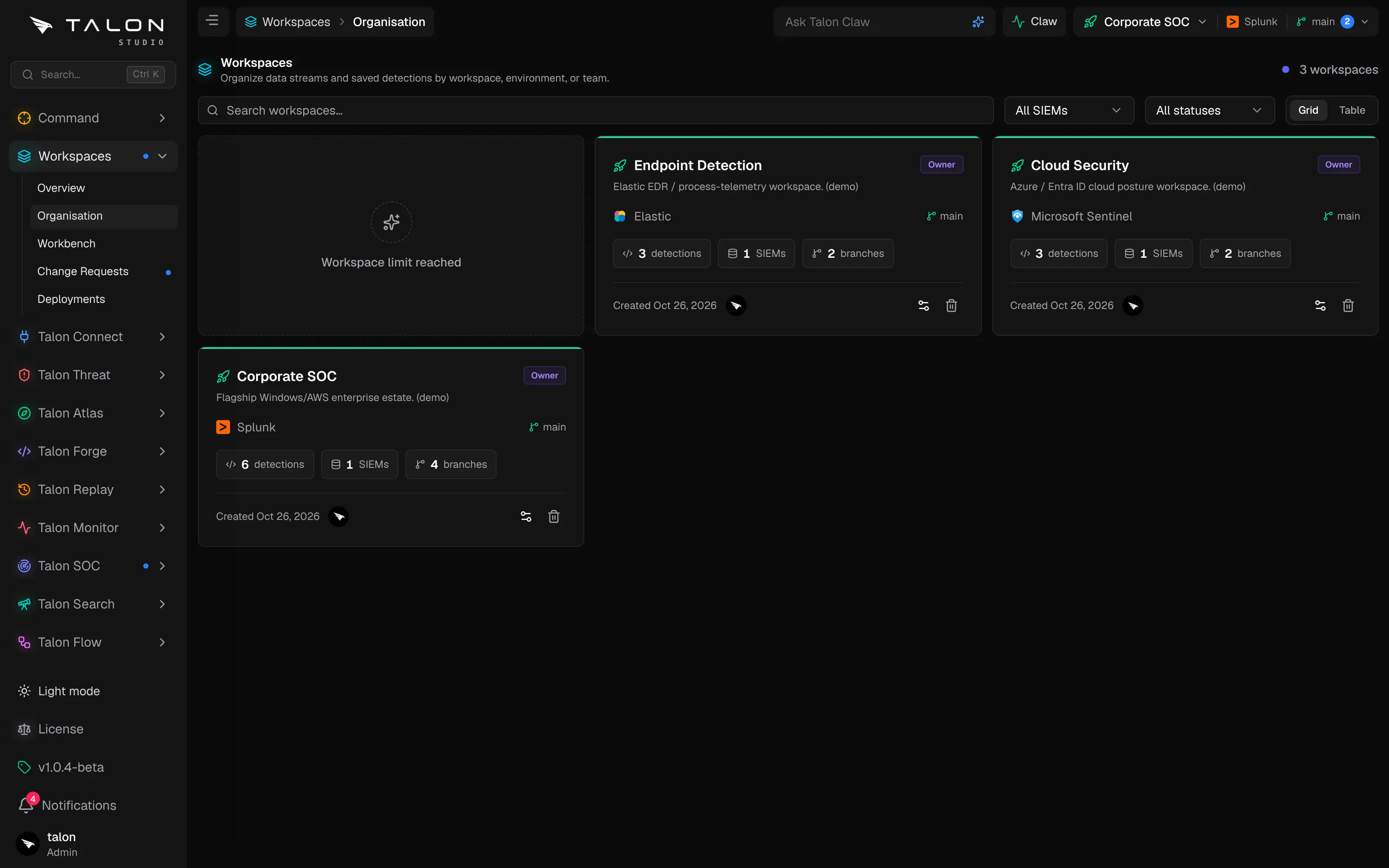
Every workspace you can access on one page: create, find, configure and delete workspaces, and set each one's review policy and Claw autonomy.
Your workspaces
Workspace → Organisation (/workspaces/organisation) lists the workspaces you can access, as a grid of cards or a table. Search by name, description or SIEM, and filter by SIEM and by deploy status: Deployed, Ready, Blocked, In progress or Empty.
Cards. Each card shows the workspace's deploy state, name and description, your role in it, its default SIEM, the branch you are on, how many detections, SIEMs and branches it has, when it was created and its direct members. Click a card to open its workbench. The table view has the same columns: Name, SIEM, Branch, Role, Detections, SIEMs, Branches, Members, Status and Created.
New workspace. The New workspace card (New Workspace in the table view) opens Create workspace: a name, the SIEM types it deploys to (the first is the default when a deploy names no target) and an optional description. You become its owner. SIEM credentials are configured in Talon Connect → SIEM.
Workspace → Organisation in the grid view: one card per workspace with its role, SIEM, branch and counts. The first card is New workspace, or Workspace limit reached once the licence's workspace limit is used, as here.
Community Edition: one workspace
In the Community Edition the New workspace card reads "Workspace limit reached" once the one workspace exists. See Licensing.
Workspace settings
The gear on a card or table row opens Workspace settings. Only the workspace's owner can change them; everyone else sees them read-only. Admins also get Manage members & roles, which opens Settings → Users & teams → Teams & access for that workspace.
Name, Description
How the workspace appears across Studio.
SIEM types
Every SIEM the workspace deploys to. The first is the default used when a deploy doesn't name a target.
Require change requests
When on, direct saves to main are blocked and every edit goes through a change request branch; only owners can commit to main, and authors can never approve their own change requests.
Review policy
Approvals required before a merge (1–5), blocking self-approval, requiring an assigned reviewer, AI review (Off, On request or Auto on open) and whether AI review blocks merge. It starts from the organisation's defaults; Reset to org defaults drops the workspace's own policy, and Org-enforced minimums means it can only tighten them. See Change Requests.
Feed alerts into Talon SOC
The workspace's alerts and cases appear in the organisation's SOC console. An Enterprise feature, and Enterprise is in development.
Claw autonomy
Off (Claw doesn't operate in this workspace), Propose (Claw queues work and you confirm each dispatch; the default) or Auto-dispatch (Claw dispatches the agent it picks; you still review the change request).
Settings wait for a commit
Save settings writes them to Talon/workspace.yaml as a pending change. Once that file has been committed before, the dialog shows Edit pending commit and the settings take effect when the change is committed, from the workbench or the workspace menu in the top bar; until its first commit they apply at once.
Deleting a workspace
The bin on a card deletes the workspace after a confirmation that says how many sourcetypes and detections go with it; it cannot be undone. Only the workspace's owner can delete it, and the organisation's last workspace cannot be deleted. An integration the workspace shares with other workspaces is kept, with the next of them as its primary, and the workspace's agent runs are deleted with it.